Flair Display Time Instead Of Frames - Frame Column Display Modes
Summary
Flair can display waypoint timing as frames, seconds, incremental frames, incremental seconds, or timecode-style values. The WhatsApp thread was short: Niko asked whether Flair 7 could show time instead of frames, shared a screenshot of the frame column, then immediately replied Got it!. The manual confirms the frame column can be toggled through display modes.
Symptoms
- The Flair 7 waypoint table shows frame numbers (e.g.
0 f,75 f,425 f) and you want to display the timing as seconds or timecode instead. - You cannot find the option to switch between frame, seconds, and incremental display modes in the Flair UI.
- You want to understand all available Frame column display modes (frames, seconds, incremental frames, incremental seconds, timecode).
Settings Location
| Task | Flair location |
|---|---|
| Change frame column display mode | Right-click or context-click the Frame / frame count column header in the waypoint view |
| Show both frame count and time | Use the Frame button context menu option such as Always Show Frames where available |
| Change move/camera FPS basis | Main Flair screen Move FPS / Cam FPS fields |
Community Solution
[LIKELY] Use The Frame Header / Context Menu
Use the Frame column/button context menu to toggle between frames, seconds, incremental frames, incremental seconds, or timecode display. The exact menu wording differs between Flair Classic and Flair 7.
Confidence: 0.66
[CONFIRMED] Video Demonstration — Flair Lite Time Display
A Flair Lite tutorial video ("Flair Lite - Keyframes & Timeline") shows this control in actual use, confirming the mechanism the WhatsApp thread above only asked about: a time display control next to the keyframe timeline can be switched from frame count to seconds, and the timing display updates immediately to show elapsed seconds instead of frame numbers. The presenter noted they personally prefer to keep working in frames out of habit, but confirmed the seconds display works correctly and updates live.
This confirms the display-mode toggle exists and works on Flair Lite specifically; it does not confirm the exact wording of the Flair Classic/Flair 7 context-menu route described in the [LIKELY] solution above, which remains a separate, unconfirmed claim.
Related Media
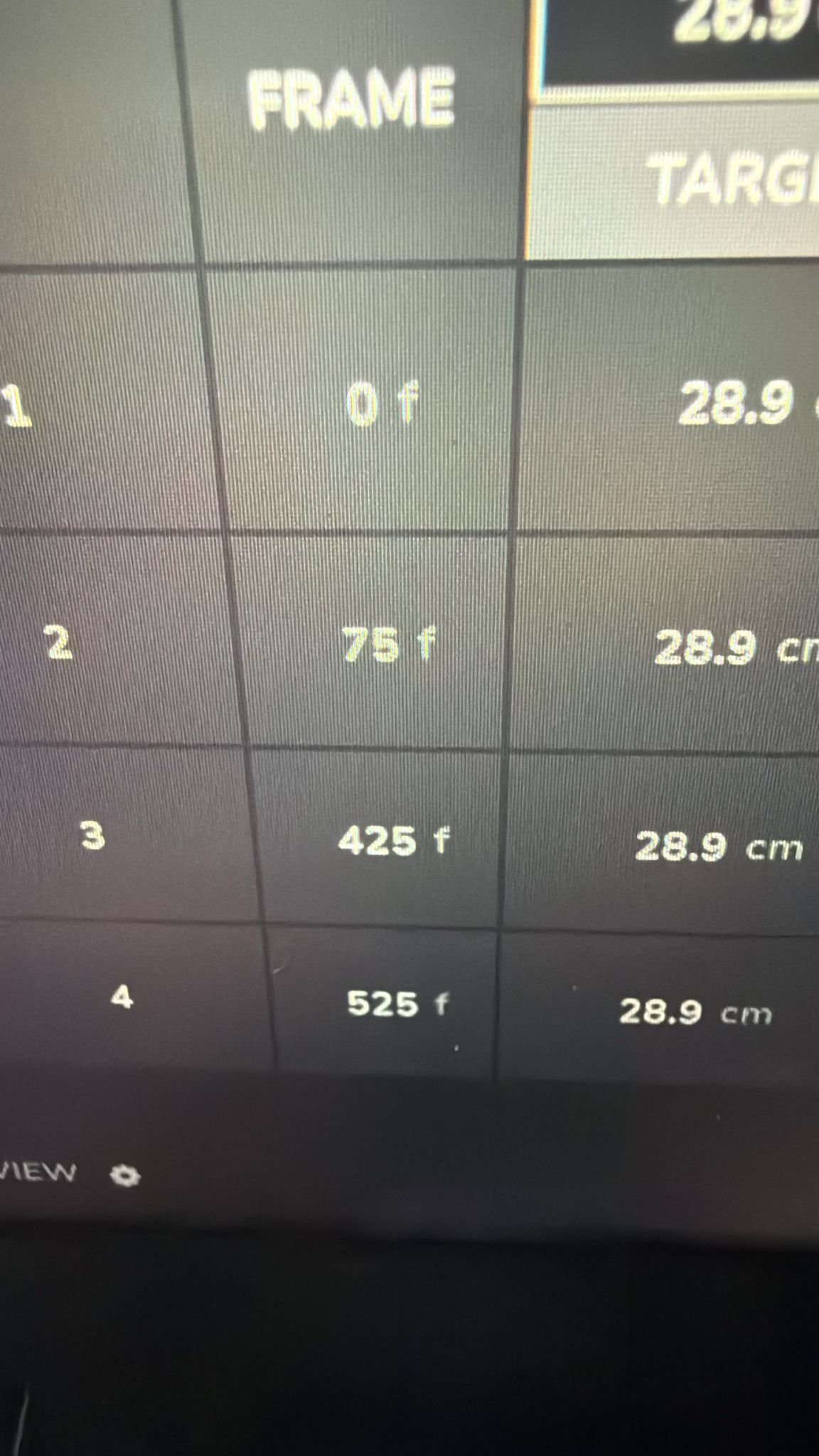
- Media 1: Visible UI text: FRAME, 0 f, 75 f, 425 f, 525 f; question was whether Flair 7 can show time instead of frames.
Media Text / Description
- Visible UI text: FRAME, 0 f, 75 f, 425 f, 525 f.
- Image description: Flair waypoint table / frame column shown while the operator asks whether Flair 7 can show time instead of frames.
WhatsApp Excerpts
[20/5/2026, 6:18:43 pm] ~ Niko: Never tried with 7 but is there any chance to see time instead of frames?
[20/5/2026, 6:19:46 pm] ~ Niko: Got it!
Official Documentation References
Related Issues
- See also: Flair.ini and UI Operator Tips - DefaultFrameInc, Browse Speed, Screen Size
- See also: Part Runs From Timecode - CalcTC and Start TC Update
- See also: Tracker App Imported Move - 60 FPS Retiming Warning
- See also: Using Push Moco to Create a Move — Flair Lite section covers adjusting keyframe frame-timing alongside this display toggle
Related Tutorials
▶ 14:32 — Switching keyframe timing display between frames and seconds via the time display control