UltiBox Tilt Port Trips With Axis Limit
Summary
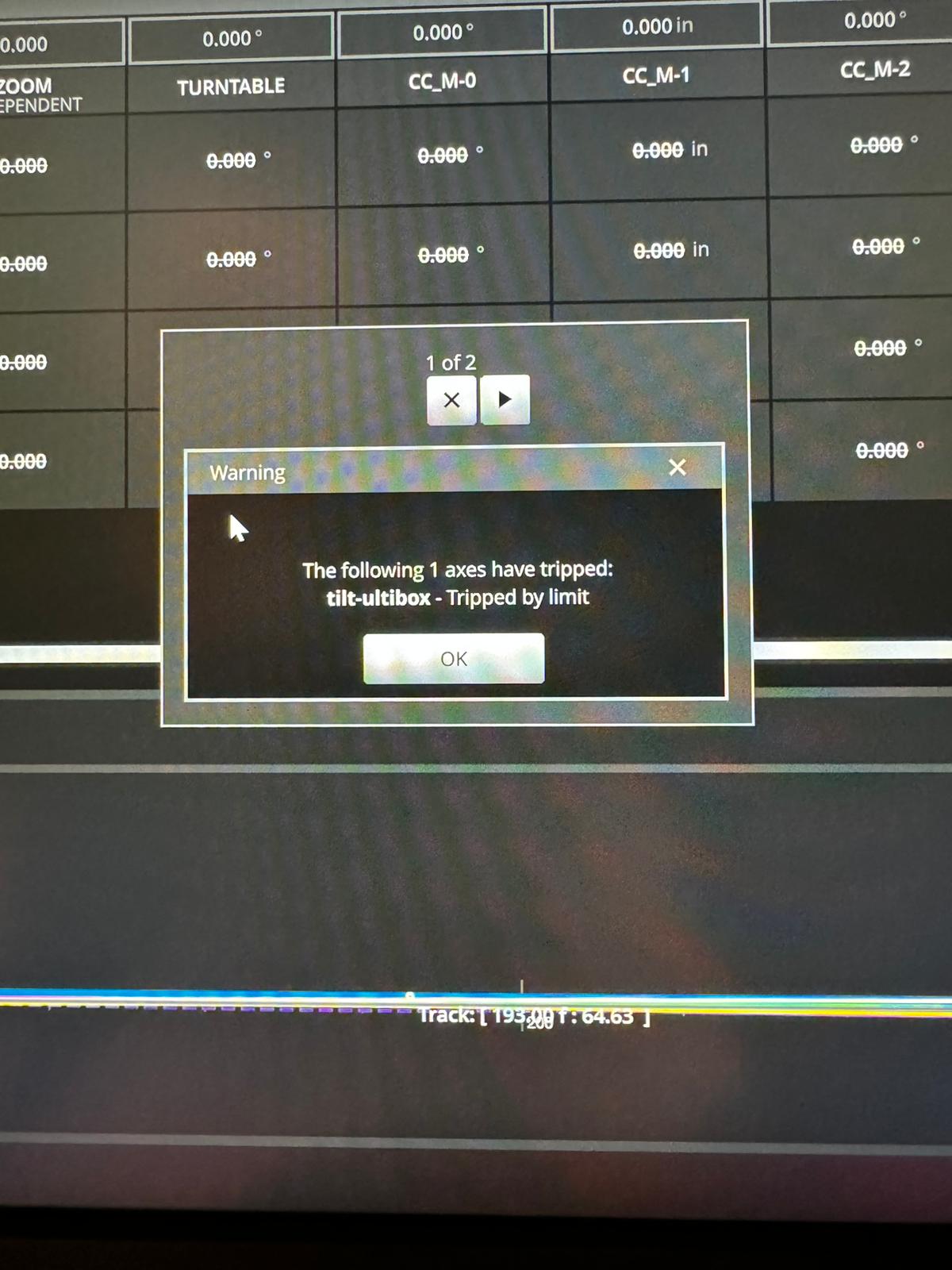
If a Bolt Jr+ reports an axis limit on the UltiBox Tilt port, identify what is physically plugged into that port and whether Flair is treating it as the intended axis. The field interpretation was that the UltiBox port labelled Tilt had tripped with an axis-limit condition.
Symptoms
- Error shown on Bolt Jr+.
- Message references the UltiBox / Tilt port.
- Axis reports as tripped by a limit.
Community Solution
[LIKELY] Verify what is connected to the Tilt-labelled UltiBox port
2024-03-27 — Justin Mahood / Nigel
- Locate the UltiBox on the Bolt Jr+.
- Check the port labelled Tilt.
- Confirm what device or motor is connected to that port.
- Open Setups -> Network Setup and confirm the UltiBox port assignment matches the physical connection.
- Open Setups -> Axis Setup, select the affected axis, check min/max limits, and clear the trip only once the physical axis is safe.
confidence_score: 0.76
Related Media
Media Text / Description
- Screenshot/error description: Bolt Jr+ / UltiBox message indicates the Tilt-labelled port or connected auxiliary axis has tripped by an axis limit.
- Media 1: Screenshot/error description: Bolt Jr+ / UltiBox message indicates the Tilt-labelled port or connected auxiliary axis has tripped by an axis limit.
WhatsApp Excerpts
[27/3/2024, 10:19:31 am] ~ Justin Mahood: Does anybody know what this means?
[27/3/2024, 10:19:46 am] ~ Justin Mahood: Bolt Jr+
[27/3/2024, 11:20:46 am] ~ Nigel: The ulti-box is where you plug your lens motors into on the jnr+ and there is a port labelled tilt, and this has tripped with an axis limit, check what you are using this port for.
Related Issues
- See also: Lens Setup Error Entering Carts With Tripped Focus Axis
- See also: Zoom Axis Trips Repeatedly With New Lens Setup
- See also: Bolt Cable Pass-Through - XLR, BNC, Ethernet Verification