CRITICAL: Always Select UPGRADE During Flair Install — New Installation Overwrites Configs
Summary
The most dangerous mistake in the Flair update process is selecting New Installation (or "Fresh Install") instead of UPGRADE during the installer. A new installation overwrites the existing Configs folder, flair.ini, and robot calibration data — including any custom axis offsets, lens configurations, and rig-specific settings. These are often impossible to recover without a backup. The correct procedure is: (1) back up the entire Flair folder before any update, (2) run the installer and select UPGRADE, (3) request a new license via Help → License → Request License after upgrading. The installer does create a backup subfolder during both new-install and upgrade paths — but custom configs that have been modified outside the standard paths may still be lost. Gordon Eschke's official video covers the complete upgrade procedure.
Symptoms
- After installing Flair, the 3D rig view shows the wrong robot (e.g. Bolt on Track instead of Bolt Jr on Pedestal).
- "Engage Robot" button is missing from the interface after update.
- All axis calibration data, lens tables, or custom offsets are gone.
- Flair opens to a default/blank configuration with no robot type assigned.
- Custom-calibrated axis offsets for target tracking corrections are lost.
- Flair 7 shows default configs after operator ran the installer and forgot to select UPGRADE.
Community Guidance
[RESOLVED] Always Select UPGRADE — Back Up First
2021-11-30 — Gordon Eschke / Timothy Heys Cerchio / Maya
Gordon Eschke's definitive upgrade procedure:
- Back up Flair — copy the entire Flair folder to a safe location before doing anything else.
- Download the new Flair installer from mrmoco.com/resources/downloads.
- Run the installer. At the first option screen, select UPGRADE — not New Installation.
- Complete installation.
- Request a new license: Help → License → Request License. After any upgrade, the system code changes and a new key is required.
- Verify the robot type and configs loaded correctly before powering on the robot.
Gordon Eschke: "To upgrade Flair 7: Back up Flair by making a copy of your Flair folder. Run the installer and select UPGRADE (if you don't do this it will overwrite your existing configurations). Complete installation. Request license as necessary."
Recovery options if configs are already overwritten:
- Email support@mrmoco.com — MRMC may have a backup of your config
- Use Tools → Import from Flair 6 (or Import from F6/Classic) and navigate to a working backup folder — note: must be a Flair 6 or Classic folder, not another Flair 7 folder
- Check if a backup PC has a working Flair folder (copy Flair folder from it)
- Look for the USB stick that came with the rig — it contains the original factory configs
Timothy Heys Cerchio: "Hi Maya, you should also have a USB stick with your Rig that has a copy of the original factory configurations in the Flair folder."
confidence_score: 0.98
[RESOLVED] Recovering from a "Fresh Install" When Custom Axis Offsets Are Lost
2021-05-11 — Riley Morgan / Gordon Eschke
If a fresh install has been run and custom calibrated axis offsets are lost, those values are not recoverable from Flair itself — they were only stored in the Configs folder that was overwritten. The only recovery path is:
- Use the backup PC's Flair folder if it has never been updated (copy it across)
- Contact Fabrizio at MRMC for remote re-calibration assistance
Gordon Eschke: "Always always always ALWAYS keep a back up copy before attempting an upgrade or major changes to the system." Gordon Eschke (on lost offsets): "Not if it's been overwritten."
confidence_score: 0.97
[RESOLVED] "Engage Robot" Button Missing — Wrong Installation Path
2022-01-05 — Gordon Eschke / Timothy Heys Cerchio / George
If the Engage Robot button is absent after an install, the most likely cause is a fresh/new installation that applied a default config with no robot type assigned. To fix:
- Run the update installer again on the same folder
- Select the Update/Upgrade option (not fresh install)
- Or: use Tools → Import from F6/Classic, navigate to a working backup folder (must be Flair 6 or Classic, not a Flair 7 folder)
Timothy Heys Cerchio: "Are you sure you did an Update and not a full New Installation?" Gordon Eschke: "Try using Tools → Import from F6/Classic and navigate to one of your working backups."
confidence_score: 0.95
[RESOLVED] Upgrading Flair Classic Only (Classic from Flair 6)
2022-11-03 — Gordon Eschke / Oscar Molano
For operators upgrading to Flair Classic from an existing Flair 6 installation:
- Run the Flair 7 installer and select "Upgrade a Flair 6 installation with Flair Classic only"
- Or: fresh-install Classic, then use Tools → Import from F6/Classic to pull settings from working backup
- Copying configs folders manually is an older practice that Gordon says "shouldn't really be required anymore" — use the import tool instead
confidence_score: 0.92
[INFORMATIONAL] Installer Backup Subfolder
2021-05-12 — Gordon Eschke
Regardless of whether you chose New Installation or Upgrade, the Flair installer creates a backup subfolder inside the Flair installation directory and copies BTLs, Configs, and Binaries into it. However this is not a substitute for keeping your own manual backup — the installer backup may be incomplete for highly customised installations.
Gordon Eschke: "In case you are not aware, if you run a Flair installation to an EXISTING Flair folder as either a 'new installation' or as 'upgrade', the installer first creates a folder called 'backup' in the existing Flair folder and copies the BTLs, Configs and Binaries into it."
confidence_score: 0.90
Related Media
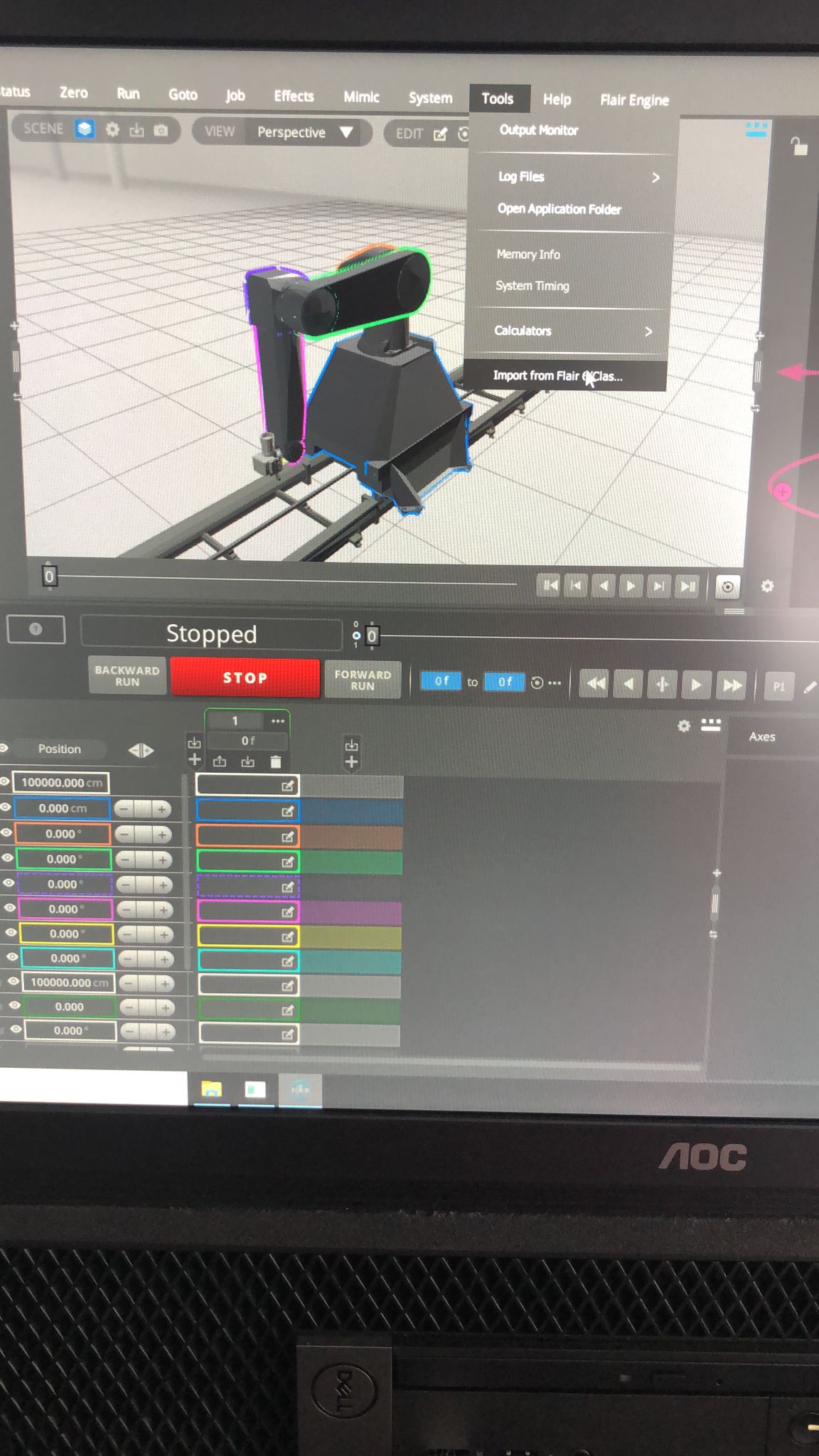
- Media 1: Flair 3D rig view after Maya ran a New Installation instead of an Upgrade — the default Bolt on Track configuration loaded instead of her Bolt Jr on Pedestal setup. The wrong robot type is visible in the rig view, and all custom configs were overwritten.
WhatsApp Excerpts
[30/11/2021] ~ Maya: So I'm a beginner here and I need some previous help
[30/11/2021] ~ Maya: I just installed the Flair 7.2.0 beta 92 version and it's showing me a Bolt on track when I'm operating a Bolt jr on pedestal, how do switch to the right rig?
[30/11/2021] ~ Maya: Hi Niko. It overwrite the previous version :(
[30/11/2021] ~ Maya: And I'm afraid the config folder I had is not updated 😔
[30/11/2021] Gordon Eschke: @~Maya To upgrade Flair 7: Back up Flair by making a copy of your Flair folder. Run the installer and select UPGRADE (if you don't do this it will overwrite your existing configurations). Complete installation. Request license as necessary.
[30/11/2021] ~ Maya: I'm afraid it's too late, I installed and not upgraded the new version and of course my config folder backup was not updated …
[30/11/2021] Gordon Eschke: If you email support@mrmoco.com then maybe we have a backup
[30/11/2021] Gordon Eschke: Also if you have a working Flair 6 installation you can do the following: In Flair 7, go to 'Tools' > 'Import from Flair 6'. Then select your Flair 6 folder and it will import the settings.
[30/11/2021] Timothy Heys Cerchio: Hi Maya, you should also have a USB stick with your Rig that has a copy of the original factory configurations in the Flair folder.
[30/11/2021] ~ Maya: 🤩 amazing! It works! Thx

[11/5/2021] ~ Riley Morgan: Hi all, the owner of the rig I operated (bolt-x) tried to upgrade flair on his own and I'm quite lost as to what he's done. Following the upgrade instructions does not seem to work; the rig owner never read the upgrade instructions nor backed up nor remembers whether he clicked "fresh install".
[11/5/2021] Gordon Eschke: Is there a back up?
[11/5/2021] ~ Riley Morgan: There is no backup. We have a backup PC that has never been booted.
[11/5/2021] Gordon Eschke: Copy the flair folder from the back up pc
[11/5/2021] Gordon Eschke: Always always always ALWAYS keep a back up copy before attempting an upgrade or major changes to the system
[11/5/2021] ~ Riley Morgan: We had offsets programmed on 3 axis of the machine because they were not perfectly calibrated from factory and were causing target tracking errors. Is there a way to save this?
[11/5/2021] Gordon Eschke: Not if it's been overwritten

[5/1/2022] ~ George: Hello, we just updated flair 7, we can't see the "Engage Robot" button. Any thoughts?
[5/1/2022] Timothy Heys Cerchio: Hi @~George Are you sure you did an Update and not a full New Installation?
[5/1/2022] Gordon Eschke: Did you get this sorted? Please check this video covering the upgrade process https://talk.mrmoco.com/t/installing-flair-7-classic-upgrading-from-flair-6/770
Related Issues
- See also: Flair License Expired Mid-Shoot — Emergency Recovery
- See also: Flair Licensing Policy - Annual Re-registration and Upgrade Checks
- See also: Running Flair Offline / Without Hardware
- See also: GStreamer Missing After Flair Update
- See also: Flair 7.5 Upgrade Startup Error
- See also: Windows 11 and Flair 7.5 Require InTime 6.4+ / InTime 7
- See also: Windows Smart App Control Blocks Flair 7 After Update
- See also: Windows Updates Breaking InTime / Hilscher Drivers
Related Tutorials
- Tutorial / forum video: Installing Flair 7 / Classic: Upgrading from Flair 6