Tracker App Live Control — Network Setup: Access Point Must Connect to Root Network
Summary
The Live Tracker feature (moving the robot in real time by moving an iPad or iPhone) requires a WiFi access point connected by Ethernet to the root/InTime network — not to the Flair PC. This is the single most common setup mistake. The WiFi router must be configured as an access point (not router mode), and the Windows firewall on the Flair PC must allow Flair on both private and public network profiles. Once these two conditions are met, Flair detects the iPad and live control is active. As of April 2023, the feature requires iOS only; no Android version exists.
Symptoms
- Live Tracker app shows connected but robot does not respond to iPad/iPhone movement.
- Flair cannot find or detect the iPad on the network.
- Setup appears correct (same network, firewall checked) but still no data coming in.
- Works on a separate test PC but not on the main Flair rig PC.
- Access point connected to Flair PC LAN port but robot ignores iPad input.
Community Guidance
[RESOLVED] Access Point Must Be Plugged into the Root/InTime Network — Not the Flair PC
2024-07-09 — Ben Myers / Dan Gottesman / Gordon Eschke
The root cause in nearly every failed setup is connecting the WiFi access point to the Flair PC's network port rather than to the root/InTime EtherCAT network. The Live Tracker data path must reach InTime in real time — which requires network access on the root side, not through the PC's secondary NIC or the Flair LAN port.
Confirmed working setup:
- Configure the WiFi router as an access point (not router mode — this is a different setting).
- Connect the access point's Ethernet cable to the root network switch (the same switch that connects the robot's EtherCAT/InTime network).
- Connect the iPad/iPhone to the access point's WiFi network.
- On the Flair PC: open Windows Defender Firewall and ensure Flair is allowed on both Private and Public network profiles.
- Launch the MRMC Tracker App; tap Live Control. Flair should detect the device.
Ben Myers: "The final step that I needed was to plug the access point into the root network. I was under the impression it needed to be connected to the Flair PC."
Simon Wakley: "The tracker has to talk to the root as the data needs to be real time and that requires some ability to do network stuff. Either bridging the PC network to InTime or adding a wireless adapter to the InTime side. Either way unless you get every step exactly right it won't work."
confidence_score: 0.95
[RESOLVED] Router Mode vs. Access Point Mode — Critical Difference
2024-07-09 — Ben Myers / Gordon Eschke
Many consumer routers default to "Router" mode (NAT, DHCP). In this mode, devices on the WiFi side are on a different subnet from the Ethernet side, preventing Flair from seeing the iPad. The router must be switched to Access Point mode so that WiFi clients join the same IP network as the root hardware.
Gordon Eschke: "Is the router configured correctly as an access point?"
Ben Myers: "It has several operation modes and I'm currently using it as a router not an access point... Trying access point now."
confidence_score: 0.95
[RESOLVED] Firewall Must Allow Flair on Both Private and Public Profiles
2024-07-09 — Gordon Eschke
Windows categorises network connections as "Private" or "Public." If the root network is classified as Public (common on unfamiliar hardware), Flair may be blocked. Open Windows Defender Firewall > Allow an app through firewall > find Flair and ensure both Private and Public checkboxes are ticked.
confidence_score: 0.90
[INFORMATIONAL] Live Tracker Safety Features — Broad Release Gated on Collision Detection
2023-04-17 — Gordon Eschke
As of April 2023, the real-time Live Tracker feature was not broadly released to all operators because collision detection and additional safety features were still in development. MRMC recommended operators contact Gordon Eschke directly for assisted setup. This is not a bug — it is an intentional staged rollout.
Gordon Eschke: "We are currently working on collision detection and some other safety features that we would recommend to be in place first, before this will be broadly released."
confidence_score: 0.88
[INFORMATIONAL] iOS Only — No Android Version
2023-04-17 — Gordon Eschke
The MRMC Tracker App (both recorded move mode and Live Tracker) is iOS only. It relies on Apple LiDAR hardware. No Android version exists or was announced.
confidence_score: 0.95
Related Media
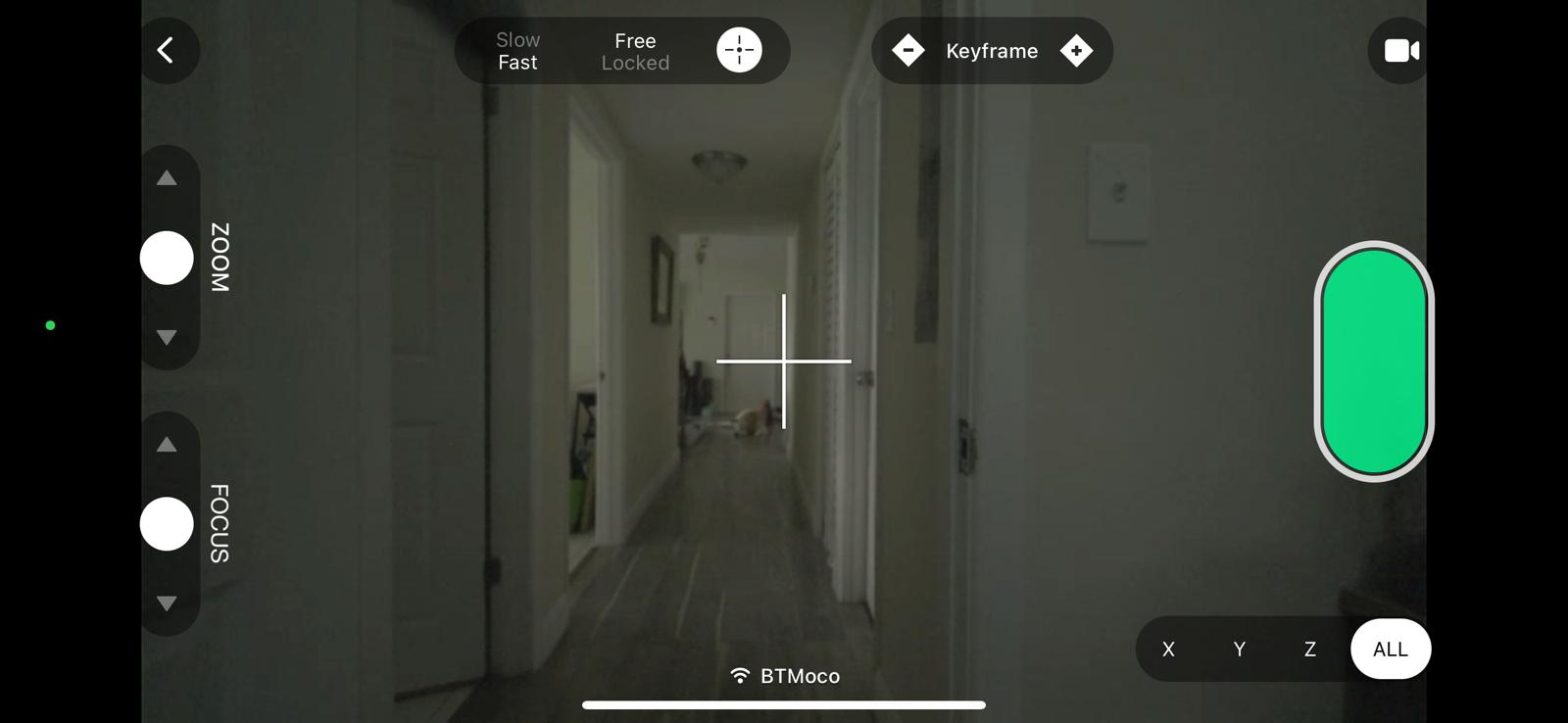
- Media 1: iPad showing the MRMC Tracker App live view confirmed working. This screenshot was taken by Ben Myers after resolving the network issue by moving the WiFi access point's Ethernet cable from the Flair PC to the root InTime network. The live camera feed from Flair is visible on the iPad alongside the robot control interface.
WhatsApp Excerpts
[17/4/2023] Oscar Molano: Is there some documentation on how to set up the network for the tracker on live control? I was trying to set up for it last week but could not get it to work and got a little lost on creating the network and connecting my phone to input to flair

[17/4/2023] Ante: Is this app only for apple or there is Android version also?
[17/4/2023] Gordon Eschke: only iOS at the moment unfortunately
[17/4/2023] Gordon Eschke: We are currently working on collision detection and some other safety features that we would recommend to be in place first, before this will be broadly released

[9/7/2024] Ben Myers: Having some trouble getting the tracker app to work with the Cinebot mini. It works just fine on a dummy copy of flair on another PC. I've followed the manual step by step and I've checked my firewall. I've also tried using the WiFi in my house as well as a private WiFi network using a little TP Link router I found on Amazon.
[9/7/2024] Gordon Eschke: is the router configured correctly as an access point?
[9/7/2024] Gordon Eschke: Make sure that Flair is allowed on private and public networks
[9/7/2024] Ben Myers: It has several operation modes and I'm currently using it as a router not an access point...I'm able to ping my phone in cmd so I'm assuming that means the network is established right?
[9/7/2024] Ben Myers: Trying access point now.
[9/7/2024] Ben Myers: Still no luck with the router configured as an access point.
[9/7/2024] Ben Myers: Tracker app is working! Shoutout to Dan Gottesman for walking me through everything. The final step that I needed was to plug the access point into the root network. I was under the impression it needed to be connected to the Flair PC.

[~2023] Steve Schweiger: I did all the steps instructed in the Live Tracker Quick start guide. PC and iPad are in the same Network (PC via LAN)...no movement coming in.
[~2023] Simon Wakley: The tracker has to talk to the root as the data needs to be real time and that requires some ability to do network stuff. Either bridging the PC network to Intime or adding a wireless adapter to the Intime side. Either way unless you get every step exactly right it won't work. I suggest contacting Gordon
Related Issues
- See also: Tracker App Import: Robot Move Completely Wrong — Zero at Home
- See also: Tracker App: Live Control — Recording Moves via Flair 7 Mimic Window
- See also: Tracker App: Erratic Robot Movement After Update — Bug in Flair 7.7.3
- See also: Tracker App: Reducing Shakiness and Jitter
- See also: MRMC Tracker App: TestFlight, App Store, and Version Access
- See also: Reserved IP Addresses and Network Conflicts
- See also: Gamepad / HHB Setup - XCam, Browse, Proportional Triggers, and Undo Caveats
Related Tutorials
- Tutorial: Flair 7 Quick Tips: Live View Setup — relevant network/live-view context before testing Tracker App live control.